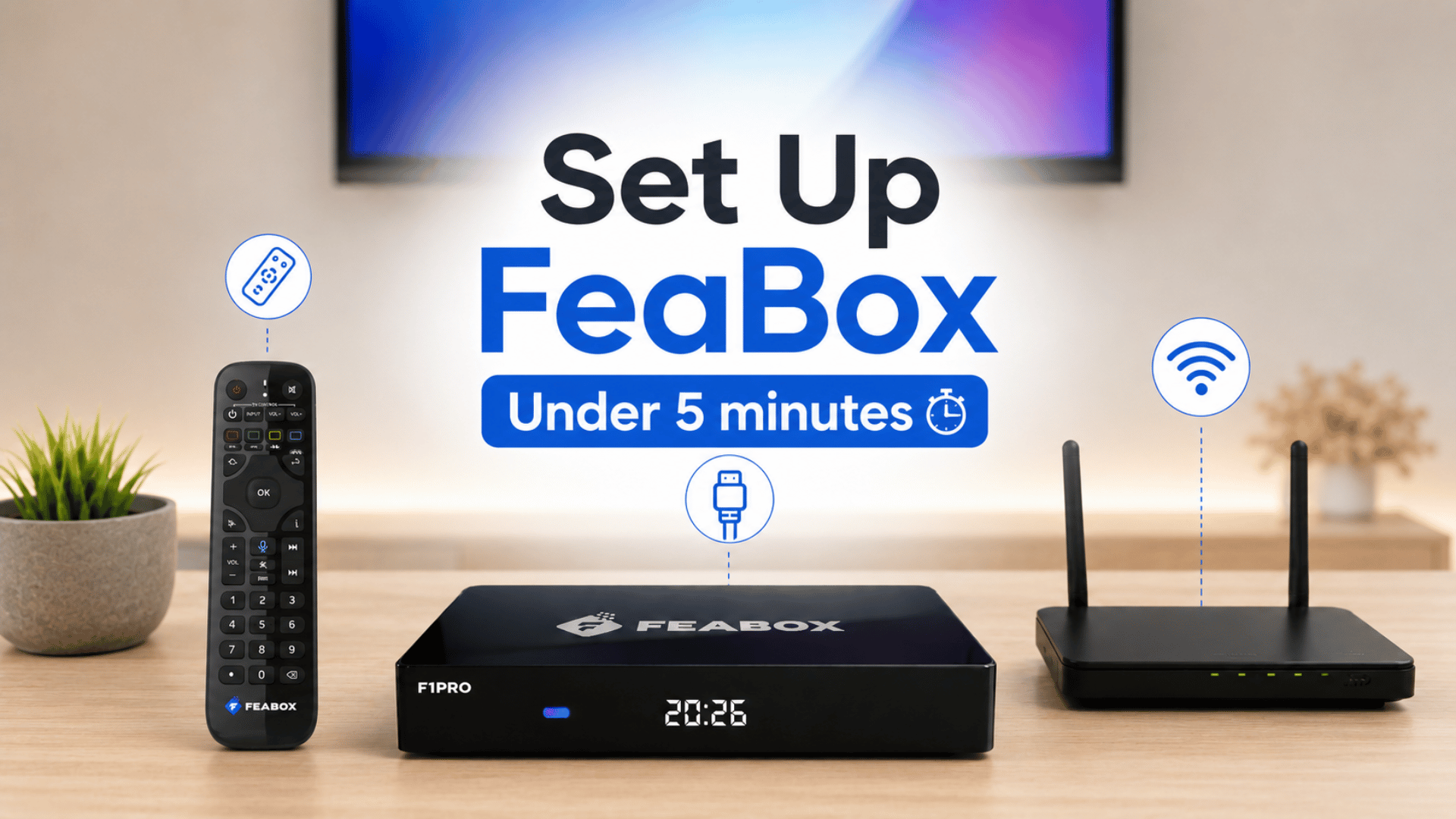
Setting up your FeaBox is much easier than you might think — from unboxing to your first stream, it typically takes just 5 to 10 minutes. Whether you’ve chosen the FeaBox F1 Pro or the FeaBox F1 Max, the process is nearly identical. No technical skills are required, and it’s simple enough for everyone in the family, including seniors and kids. Follow this complete walk‑through to get started quickly.
Before You Begin: What’s in the Box
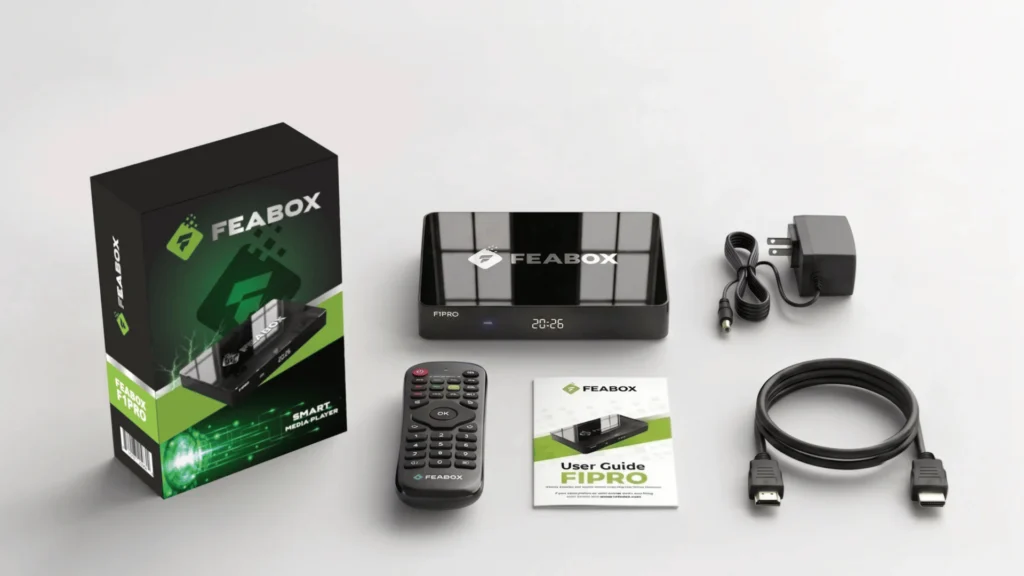
Open your package and check that you have all these items:
- FeaBox F1 Pro or F1 Max unit
- Backlit Bluetooth voice remote control
- HDMI cable
- Power adapter
- User manual
You’ll also need (not included):
- A TV with an HDMI port
- A stable internet connection (Wi‑Fi or Ethernet)
- Two AAA batteries (if not pre‑installed in the remote)
Pro tip: Insert the batteries before powering on the device — the setup wizard will prompt you to pair the remote right after boot, and having batteries ready saves you a couple of minutes.
Step‑by‑Step Setup Instructions
1. Connect the HDMI Cable
Plug one end of the HDMI cable into the HDMI port on the back of your FeaBox, and the other end into any available HDMI input on your TV.
2. Connect the Power Adapter
Insert the power adapter into the DC port on the device, then plug it into a wall outlet. The LED indicator will light up to show that the device is powered. If you have the FeaBox F1 Max, the front LED clock display will also turn on.
3. Switch TV Input Source
Turn on your TV and use your TV remote to select the HDMI input that matches the port you used for the FeaBox. After about 15–20 seconds, the welcome screen will appear.
4. Follow the On‑Screen Setup Wizard
The wizard will guide you through the remaining configurations:
- Choose your language
- Connect to a network
- Adjust basic system settings
Most users complete the entire process in under 10 minutes.
How to Pair the Remote Control
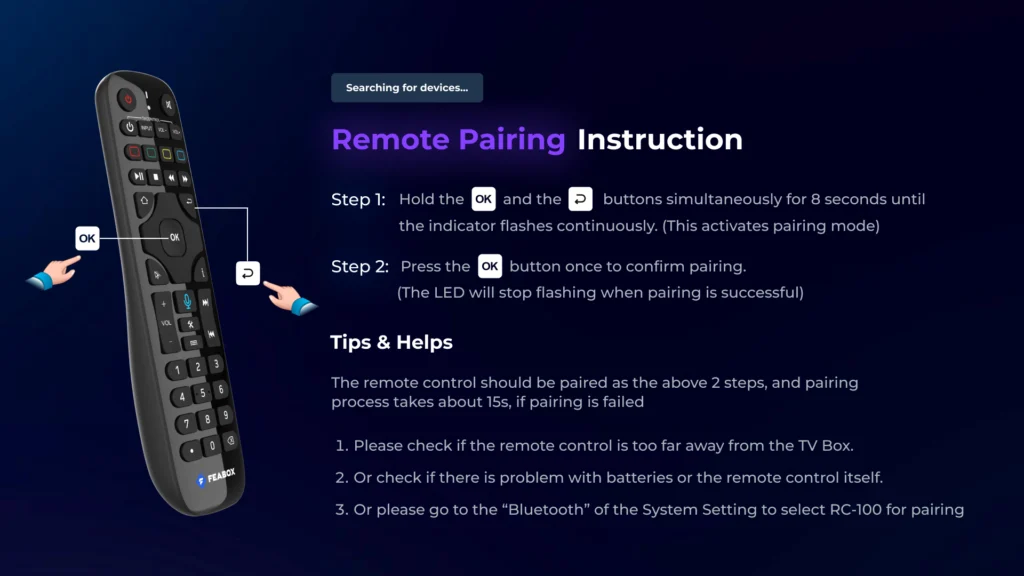
Both the FeaBox F1 Pro and F1 Max come with a Bluetooth voice remote that features backlighting. Pairing is straightforward:
- Insert the batteries.
- Power on the FeaBox.
- Follow the on‑screen pairing prompt.
- When instructed, press and hold the pairing button until the remote enters pairing mode.
- Wait for the confirmation message that pairing is complete.
Once paired, the remote operates via Bluetooth, so you don’t need to point it directly at the device — a great convenience. The backlit keys are especially useful in dimly lit rooms.
How to Connect to Wi‑Fi
An internet connection is essential for streaming content. To connect your FeaBox to Wi‑Fi:
- Go to Settings from the home screen.
- Select Network & Internet.
- Choose Wi‑Fi.
- Find your wireless network and select it.
- Enter your password and wait for the connection to succeed.
Both the F1 Pro and F1 Max support dual‑band Wi‑Fi 6, which delivers faster speeds and more stable connections when paired with a compatible router. If your router is near the TV, we recommend using the Gigabit Ethernet port for the most reliable performance, especially for live sports and 4K content.
How to Update System Software
Keeping your device updated improves stability, compatibility, and security. To check for updates:
- Open the app store and look for available updates for installed apps.
- System firmware updates are also pushed periodically. It’s a good idea to check for updates right after the initial setup, since the factory firmware may not be the latest version.
Regular updates ensure you get the best performance and new features over time.
Using Voice Commands
Voice control makes navigation faster and easier. To use it:
- Press and hold the microphone button on the remote.
- Wait for the voice prompt to appear.
- Speak your command naturally.
You can use voice commands to:
- Open apps
- Search for movies and shows
- Launch settings
- Quickly find content you want to watch
This feature is particularly handy for seniors or anyone who prefers speaking over typing on an on‑screen keyboard.
How to Restart Your FeaBox
If an app freezes or the interface feels sluggish, a restart often resolves the issue quickly. Here’s how:
- Open Settings.
- Go to Device Settings or the Power menu.
- Select Restart.
- Wait for the system to reboot.
Restarting does not delete your apps, recordings, or personal settings.
How to Factory Reset Your Device
If you’re planning to give away your device, troubleshooting persistent issues, or simply want a fresh start, you can perform a factory reset:
- Go to Settings.
- Select Device Preferences.
- Choose Reset (or Factory Reset).
- Confirm your choice.
The device will reboot and erase all local settings, installed apps, and personal data (including any recordings made with the built‑in recording features). Be sure to back up anything important before proceeding. After the reset, you’ll need to set up the device again using the steps above.
Frequently Asked Questions
Can I set up FeaBox without Wi‑Fi?
Yes. You can connect via the built‑in Gigabit Ethernet port for a wired network connection.
Does FeaBox work with older TVs?
Absolutely. In addition to HDMI, FeaBox also includes an AV output port, making it compatible with many older television models.
What’s the difference between F1 Pro and F1 Max?
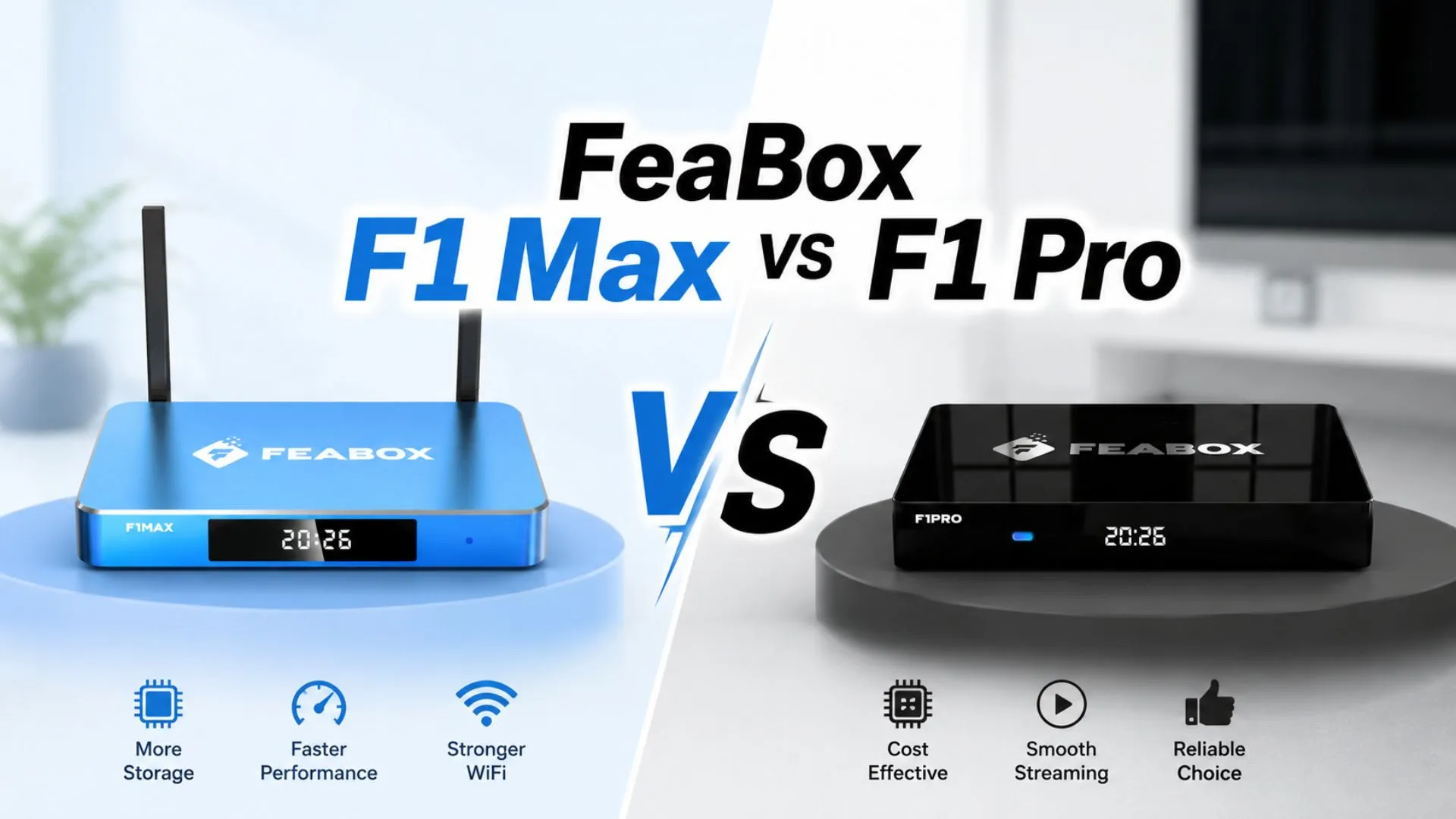
The F1 Pro has 32GB of storage, while the F1 Max offers 64GB and an added front LED clock display. Both run on Android 12, feature a quad‑core Cortex‑A53 processor, Wi‑Fi 6, Gigabit Ethernet, and Bluetooth 5.2 — so the core experience is the same.
Can I connect USB devices?
Yes. Both models include USB ports, allowing you to connect flash drives, keyboards, or other compatible accessories.
Do I need any technical knowledge?
Not at all. FeaBox’s interface is clean, with large icons and intuitive menus, so users of all ages can easily navigate and enjoy.
Final Thoughts
Setting up your FeaBox is quick and painless — just a few minutes from start to finish. Connect the hardware, pair the remote, select your network, and you’re ready to explore thousands of live channels, movies, sports, and on‑demand content. Whether you opt for the F1 Pro or the F1 Max, the setup process is the same. If you run into any issues, refer to the included user manual or reach out to FeaBox customer support for assistance. Enjoy your new streaming experience and start saving on monthly cable bills today!